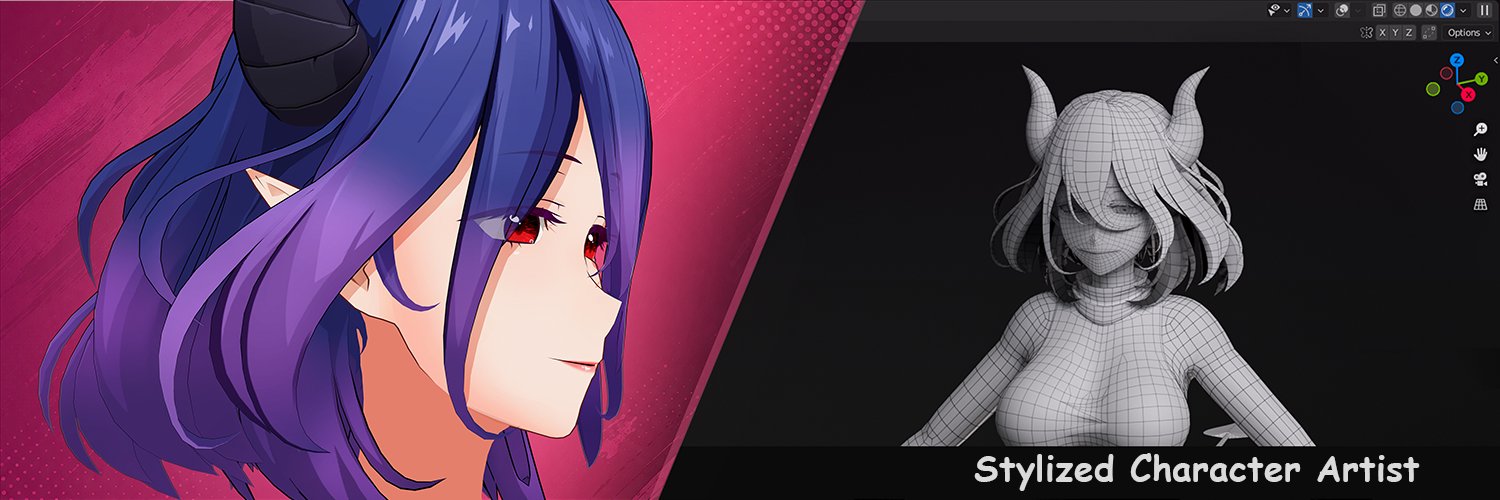
Weytant's banner
Weytant's profile picture

Weytant

@Weytant_V • 1,416 subscribers

Anime 3D Characters | Blender | UE5 Collab: [email protected] 🎁 Guides & 3D Samples: 🇯🇵 FANBOX: https://t.co/BqpAQb6fDk 🌎 Patreon 👇

Shorts

顔の回転時に2Dルックを保つ簡単な方法(Lattice使用)日本の3Dアーティストのアイデアを再現してみました! A simple way to keep the 2D anime look during head turns using the Lattice modifier. Inspired by a cool technique I saw recently! 数日前、三縁エイト @自主制作アニメ映画『砂塵ノ中デ』 さんの素晴らしい2Dディストーション効果の動画を見かけました。とても感動したので、自分のヴェルメル(Vermeil)のモデルで早速試してみました! 注意点: 私のセットアップでは、この方法だと髪のフレネル(Fresnel)が少し崩れてしまいますが、全体的な効果はそれでも本当に素晴らしいです! Blenderでこれを実現する方法は、専用のプラグインから複雑なスクリプトまでたくさんあります。予算があるなら、既製のプラグインを購入するのが間違いなく一番手っ取り早いです。しかし、初心者の方や無料の内蔵機能で試したい方のために、Lattice(ラティス)モディファイアを使った最も簡単な原理を紹介します。必要に応じて、この方法を自由にカスタマイズしてアップグレードしてみてください! 🛠️ ステップ・バイ・ステップの設定方法: Latticeを追加する: Latticeオブジェクトを作成し、キャラクターの頭部の周りに合わせてスケールを調整します。 シェイプキー(Shape Key)を作成する: Latticeの設定で、新しいShape Keyを追加します。 Latticeを平らにする: 作成したシェイプキーをアクティブにした状態でエディットモード(Edit Mode)に入り、Latticeを1つの軸(XまたはYなど)に沿って潰し、2Dの圧縮効果を作ります。 Empty(空のオブジェクト)とカメラを設定する: Emptyオブジェクトを頭の中心に配置します。 カメラを選択し、次にShiftを押しながらEmptyを選択して、Ctrl + P -> Object を選び、カメラをEmptyの親に設定します。 コンストレイントを追加する: Latticeを選択し、Constraintsタブに移動して Copy Rotation(回転コピー) を追加します。ターゲット(Target)にはカメラを選択します。 これで完成です!Emptyが回転するとカメラが移動し、Latticeがカメラの角度に応じてジオメトリを動的に平らにするため、どの角度から見ても完璧な2Dアニメのシルエットが維持されます! A few days ago, I came across a brilliant video by 三縁エイト @自主制作アニメ映画『砂塵ノ中デ』 showcasing an amazing 2D distortion effect. I loved it and immediately tried it on my Vermeil model. Note: For my specific setup, this method slightly breaks the Fresnel on the hair, but the overall effect is still absolutely stunning! There are many ways to achieve this in Blender—from custom add-ons to complex scripts. If you have the budget, buying a dedicated plugin is definitely the easiest route. However, for beginners or those who want a free built-in solution, here is the simplest way to recreate this principle using a Lattice modifier. You can easily upgrade and customize this method to fit your needs! 🛠️ Step-by-Step Setup: Add a Lattice: Create a Lattice object and scale it around your character's head. Create a Shape Key: Inside the Lattice settings, add a new Shape Key. Flatten the Lattice: With the Shape Key active, enter Edit Mode and flatten the Lattice along one axis (e.g., X or Y) to create the 2D compression effect. Set up the Empty & Camera: Place an Empty object right at the center of the head. Select your Camera, then the Empty, and press Ctrl + P -> choose Object to parent the camera to the empty. Add Constraint: Select your Lattice, go to the Constraints tab, and add a Copy Rotation constraint. Set the Target to your Camera. Now, as the empty rotates, the camera moves, and the Lattice dynamically flattens the geometry based on the camera's angle, maintaining that perfect 2D anime silhouette! Check out the original inspiring tweet here: #b3d #3dart #anime3d #Vermeil #3DCG

顔の回転時に2Dルックを保つ簡単な方法(Lattice使用)日本の3Dアーティストのアイデアを再現してみました! A simple way to keep the 2D anime look during head turns using the Lattice modifier. Inspired by a cool technique I saw recently! 数日前、三縁エイト @自主制作アニメ映画『砂塵ノ中デ』 さんの素晴らしい2Dディストーション効果の動画を見かけました。とても感動したので、自分のヴェルメル(Vermeil)のモデルで早速試してみました! 注意点: 私のセットアップでは、この方法だと髪のフレネル(Fresnel)が少し崩れてしまいますが、全体的な効果はそれでも本当に素晴らしいです! Blenderでこれを実現する方法は、専用のプラグインから複雑なスクリプトまでたくさんあります。予算があるなら、既製のプラグインを購入するのが間違いなく一番手っ取り早いです。しかし、初心者の方や無料の内蔵機能で試したい方のために、Lattice(ラティス)モディファイアを使った最も簡単な原理を紹介します。必要に応じて、この方法を自由にカスタマイズしてアップグレードしてみてください! 🛠️ ステップ・バイ・ステップの設定方法: Latticeを追加する: Latticeオブジェクトを作成し、キャラクターの頭部の周りに合わせてスケールを調整します。 シェイプキー(Shape Key)を作成する: Latticeの設定で、新しいShape Keyを追加します。 Latticeを平らにする: 作成したシェイプキーをアクティブにした状態でエディットモード(Edit Mode)に入り、Latticeを1つの軸(XまたはYなど)に沿って潰し、2Dの圧縮効果を作ります。 Empty(空のオブジェクト)とカメラを設定する: Emptyオブジェクトを頭の中心に配置します。 カメラを選択し、次にShiftを押しながらEmptyを選択して、Ctrl + P -> Object を選び、カメラをEmptyの親に設定します。 コンストレイントを追加する: Latticeを選択し、Constraintsタブに移動して Copy Rotation(回転コピー) を追加します。ターゲット(Target)にはカメラを選択します。 これで完成です!Emptyが回転するとカメラが移動し、Latticeがカメラの角度に応じてジオメトリを動的に平らにするため、どの角度から見ても完璧な2Dアニメのシルエットが維持されます! A few days ago, I came across a brilliant video by 三縁エイト @自主制作アニメ映画『砂塵ノ中デ』 showcasing an amazing 2D distortion effect. I loved it and immediately tried it on my Vermeil model. Note: For my specific setup, this method slightly breaks the Fresnel on the hair, but the overall effect is still absolutely stunning! There are many ways to achieve this in Blender—from custom add-ons to complex scripts. If you have the budget, buying a dedicated plugin is definitely the easiest route. However, for beginners or those who want a free built-in solution, here is the simplest way to recreate this principle using a Lattice modifier. You can easily upgrade and customize this method to fit your needs! 🛠️ Step-by-Step Setup: Add a Lattice: Create a Lattice object and scale it around your character's head. Create a Shape Key: Inside the Lattice settings, add a new Shape Key. Flatten the Lattice: With the Shape Key active, enter Edit Mode and flatten the Lattice along one axis (e.g., X or Y) to create the 2D compression effect. Set up the Empty & Camera: Place an Empty object right at the center of the head. Select your Camera, then the Empty, and press Ctrl + P -> choose Object to parent the camera to the empty. Add Constraint: Select your Lattice, go to the Constraints tab, and add a Copy Rotation constraint. Set the Target to your Camera. Now, as the empty rotates, the camera moves, and the Lattice dynamically flattens the geometry based on the camera's angle, maintaining that perfect 2D anime silhouette! Check out the original inspiring tweet here: #b3d #3dart #anime3d #Vermeil #3DCG

55,808 görüntüleme

WIP:スタイライズ影用のHMマップ制作 WIP: Drawing HM Map for Stylized Hair Shadows ヴェルメイの頭部はほぼ完成しています。 もっと早く見せたかったのですが、キャラクターに使える時間が今ようやくできました。今は、スタイライズされた髪の影用のHMマップをほぼ作り終えました。 ちなみに、私の記事を参考にテクスチャマップを作っていて Substance Painter を使っているなら、光のラインはカーブで描くのをおすすめします。手描きよりずっと楽で、仕上がりもきれいになり、各ラインの太さ・方向・ぼかしもすぐに修正できます。頭部全体はもうすぐお見せします。 Vermeil’s head is almost done. I wanted to show this earlier, but I only just got free time for the character.I’ve almost finished the HM map for stylized hair strand shadows. By the way, if you’re making a texture map from my article and working in Substance Painter, I recommend using curves for the light lines. It’s much easier than painting by hand, the result is cleaner, and you can quickly edit each line - thickness, direction, and blur.I’ll show the full head soon. #b3d #3DCG #Shader #Anime3D #WIP

WIP:スタイライズ影用のHMマップ制作 WIP: Drawing HM Map for Stylized Hair Shadows ヴェルメイの頭部はほぼ完成しています。 もっと早く見せたかったのですが、キャラクターに使える時間が今ようやくできました。今は、スタイライズされた髪の影用のHMマップをほぼ作り終えました。 ちなみに、私の記事を参考にテクスチャマップを作っていて Substance Painter を使っているなら、光のラインはカーブで描くのをおすすめします。手描きよりずっと楽で、仕上がりもきれいになり、各ラインの太さ・方向・ぼかしもすぐに修正できます。頭部全体はもうすぐお見せします。 Vermeil’s head is almost done. I wanted to show this earlier, but I only just got free time for the character.I’ve almost finished the HM map for stylized hair strand shadows. By the way, if you’re making a texture map from my article and working in Substance Painter, I recommend using curves for the light lines. It’s much easier than painting by hand, the result is cleaner, and you can quickly edit each line - thickness, direction, and blur.I’ll show the full head soon. #b3d #3DCG #Shader #Anime3D #WIP

16,397 görüntüleme

髪の毛の曲がり部分のメッシュ密度を少し上げて、流れが滑らかになるように調整しました。 Increased the mesh density around the hair bends a bit so the strands curve more smoothly. Left: final shader / Right: wireframe #b3d #3DCG #Anime3D #Blender

髪の毛の曲がり部分のメッシュ密度を少し上げて、流れが滑らかになるように調整しました。 Increased the mesh density around the hair bends a bit so the strands curve more smoothly. Left: final shader / Right: wireframe #b3d #3DCG #Anime3D #Blender

11,159 görüntüleme

Videos

Daha fazla içerik yok.