Загрузка видео...

Не удалось загрузить видео

На главную

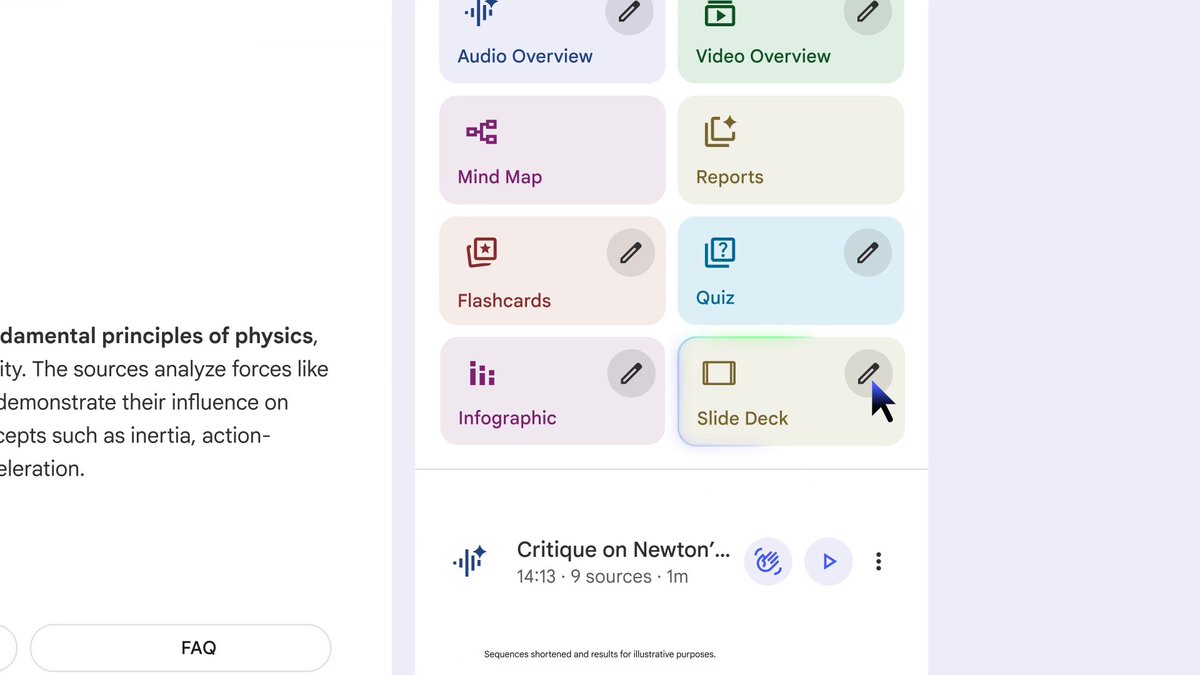
Reports are getting a MAJOR update starting today (buckle up, this is a big one 🤯): 1) You can now create your own report that perfectly fits your needs by specifying the structure, style, tone, and more. 2) We've added the language picker to reports, so you can now...

905,146 просмотров • 11 месяцев назад •via X (Twitter)

Комментарии: 0

Нет доступных комментариев

Здесь появятся комментарии из оригинального поста

Похожие видео

Read 100 paywalled research papers for free every month! You don't even need a university account to do this. Here's how to read paywalled papers on JSTOR for free: 1. Go to jstor(dot)org and click on "Register" in the top-right corner. You can register with your personal Google or Outlook account. Or, you can create a JSTOR account manually. 2. Once you've logged in to your JSTOR account, click on "Workspace" in the menu bar. Then click on "Create folder." Choose a name for your folder and click on "Create."Creating folders in Workspace is a great way to keep your papers organized. 3. Type in the keywords in the search bar to find relevant papers. JSTOR willl give you a list of papers. To read a paper for free, click on "Read online." You will see a preview of the paper. Scroll down a bit and click on "Read Online" again. 4. If you find the paper super-relevant to your project, click on "Save" on the top of the article. Choose the folder you just created in your Workspace and save the paper in it. If you go to your Workspace, the paper will show up in the relevant folder. 5. You can also take notes on papers in your Workspace. To do so, click on the "Add Note" button under a paper and start typing. Click on "Save" to your save your note. 6. If you already have a paper and you want to related to it, you can use Text Analyzer. To do so, click on "Tools" and select "Text Analyzer." Upload the paper you have and JSTOR will give you a list of papers related to you original paper. 7. Text Analyzer also lets you callibrate your search parameters. Adjust the priority for different terms by moving the priority scale left or right. You can more related terms and adjust their priority. Text Analyzer will update the results accordingly. 8. If you find a paper interesting, simply click on it and then select "Read Online." 9. You can also add papers to your Zotero library. Open the paper you want to add and click on the Zotero Connector in the top-right corner of your browser. Choose the Zotero collection you want to save the paper in and click on "Done." The paper will show up in your Zotero. Found this post on JSTOR helpful? • Repost to share it with your friends and colleagues. •Follow me for more posts on academic writing.

Mushtaq Bilal, PhD

31,810 просмотров • 2 лет назад

Two big steps towards our vision for @NotebookLM as the ultimate research platform: • Integrating Deep Research, with a set of only-at-Notebook features that let you explore the retrieved sources • Launching a series of Featured Notebooks curated by Google Research These developments are designed to enhance the full life cycle of research and scholarship: using the power of AI to assemble the knowledge base you need to advance your understanding, and then making your work accessible and intelligible to a wider audience using all the explanatory tools that Notebook offers. If you've used DeepResearch in the Gemini app, you already know that it's a pioneering advance in assembling complex, grounded information on any topic imaginable—collecting an entire trove of material for you and writing a nuanced research report that summarizes the findings. But because NotebookLM is designed to manage and explore potentially hundreds of sources, the Deep Research report is only the beginning of your journey. In our integration, Deep Research gives you an overview all of the sources it found during its research phase, with annotated commentary explaining how each source related to your original query. You can then choose to import some or all of the sources to the notebook, along with the report itself, which you can then explore or transform using the full suite of tools that Notebook offers: grounded chat with citations, Mind Maps, Audio/Video overviews, and much more. And it's that suite of tools that make the Google Research Featured Notebooks so compelling as well. Each notebook contains a curated collection of articles on a specific topic, published by the Google Research team. Think of them as a kind of knowledge base of Google's best thinking on a series of compelling research questions: How do scientists link genetics to health? How will quantum computing be useful? If you're a specialist in these fields, you can read the original papers or ask nuanced questions in chat and advance your understanding of the latest developments. But these notebooks can also make the complex but important topics understandable to non-specialists or students. Each notebook comes with pre-generated audio and video overviews, flashcards, and other Studio artifacts designed to make the scientific and technological concepts accessible and interesting. And you can always explore the material with our new "Learning Guide" chat mode that effectively gives you a personal tutor to enhance your understanding. There's much more to come on this front, but you can see in these two announcements how we see Notebook as both a workbench for conducting research and a publishing platform for sharing the results of that research once you're ready to make it public. Deep Research is rolling out this week to all users. The first two Google Research notebooks are live now, both of them deep dives into our most recent discoveries involving genetics and health. (Links in the following tweets.) We'll be publishing new notebooks in the series every other week or so for the next few months.

Steven Johnson

104,833 просмотров • 9 месяцев назад